

How to add a dynamic PDF stamp
|
If you've ever needed to add a stamp to a PDF to confirm who approved it and when, you know the manual version means forwarding files by email and hoping everyone finds the latest one. According to Ardent Partners' State of ePayables 2025 report, best-in-class accounts payable teams process invoices 79% faster than everyone else, and status tracking is a big part of that gap.
A dynamic PDF stamp closes that gap directly. Instead of filling in the date, name, or status by hand every time, it pulls that information automatically, so anyone can see where a document stands without opening an email thread or asking a colleague.
In this article, you'll learn what a dynamic PDF stamp is, how the underlying stamp works step by step, and why automating it saves you real time once your document volume grows.
Key takeaways
- A dynamic PDF stamp automatically fills in details like date, name, or status, instead of requiring manual entry every time.
- It works like a standard PDF stamp, but removes repetitive data entry and formatting errors entirely.
- You can create the underlying stamp in most standard PDF editors in six simple steps.
- Approval workflows, invoice processing, status queries, and compliance labeling all benefit from stamps that update themselves.
- Doxis applies dynamic stamps automatically as part of your existing document workflows.
What is a PDF stamp?
A dynamic PDF stamp is an electronic mark that automatically fills in details like the date, name, or status directly on a document, instead of requiring manual entry each time. It works like a standard PDF stamp, but pulls information from your existing systems to keep every document consistently formatted.
This is a helpful way for companies to include greater context in their document management workflows.
Dynamic PDF stamping with Doxis in 6 steps
Hey Doxi, how do I create a PDF stamp?
You can create a PDF stamp in most standard document management systems, including Adobe Acrobat and other PDF editors.
Step 1: Open your preferred system.
Any PDF editor with stamp functionality will work for this, whether that's Adobe Acrobat, another desktop PDF tool, or a document management system with stamping built in.
Step 2: Go to the tools menu and select the stamp function.
This is usually listed alongside annotation or markup tools, sometimes grouped under "comment" or "review" depending on the software you're using.
Step 3: Choose a stamp type.
Select a preconfigured stamp like "approved" or "confidential," or decide whether you want a standard electronic stamp or a dynamic one that fills in details automatically.
Step 4: Create a custom stamp if needed.
Build one from a format of your choice, add the text or fields you need, and save it to the right category, such as invoice approval, so it's ready to reuse next time.
Step 5: Place the stamp on your document.
Select it from the dialog and position it wherever it's needed on the PDF, resizing it if the placement calls for something smaller or larger.
Step 6: Save the file to lock the stamp in place.
Once saved, the stamp becomes a permanent part of the document, visible to anyone who opens it afterward.
Ideally, your document management system includes a built-in stamp function, so stamping connects directly to the rest of your document workflow instead of living in a separate tool.
Standard stamps vs. dynamic stamps
A standard PDF stamp still requires someone to fill in the details by hand: the date, the processor's name, a sequence number. A dynamic PDF stamp removes that step entirely, pulling the same details automatically from your existing systems.
| Standard stamp | Dynamic stamp | |
| Date and time | Entered manually | Captured automatically |
| Processor name or status | Typed in by hand | Pulled from a connected system, like your ERP |
| Sequence numbering | Tracked manually, prone to duplicates | Assigned automatically to every signature |
| Setup effort | None upfront, but repeated every time | A one-time connection to your data source, then hands-off |
| Consistency across documents | Varies by whoever fills it in | Identical format every time |
| Best fit | Occasional, low-volume use | High-volume, repetitive workflows like invoicing |
The difference matters most at volume. A single manual stamp takes seconds, but multiplied across hundreds of invoices or applications a day, that manual entry becomes a real source of delay and inconsistent formatting. A dynamic stamp keeps every document in the same standardized format automatically, which is exactly the kind of gap the Ardent Partners data above points to between average and best-in-class processing teams.
Doxis adapts the stamp individually every time you use it. Releasing an invoice, for example, pulls the correct name, date, and time directly into the stamp, so you just place it on the document and let your usual Doxis workflow take over from there. Closed invoices are then archived automatically for the full retention period.
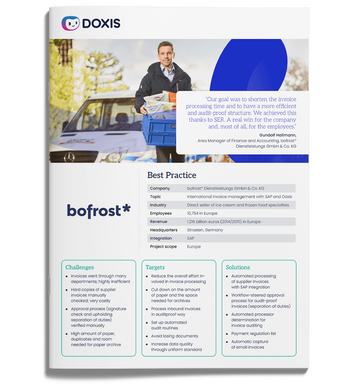
bofrost*: Automated inbound invoice processing with ECM & SAP
Read all about how bofrost* automates its invoice processing with Doxis, saving time and money along the way
Read nowWhy choose Doxis for document stamping
Doxis is built around your existing document workflows, not as a separate stamping tool bolted on top. Every dynamic stamp stays connected to the same audit trail, retention rules, and integrations you already rely on for approvals, invoicing, and compliance.
If you're stamping documents across connected systems, whether that's an accounting platform, an HR system, or a case management tool, here's what that gets you with Doxis:
- Dynamic, auto-populated stamps: Doxis fills in the date, processor name, and status automatically, pulling the details from your existing systems instead of requiring manual entry every time.
- Document workflow automation: stamping connects directly to the approval, invoicing, and compliance processes already running in Doxis, so a status change updates the record everywhere at once.
- Automated archiving with full retention: closed and stamped documents are archived automatically for their required retention period, with no separate step to remember.
- Native SAP, Microsoft 365, ERP, and CRM integration: stamps stay accurate and visible even when a document's last step happens outside Doxis.
- Role-based access: only the right people can view or apply sensitive stamps, keeping confidential and internal-use documents properly restricted.
- A complete audit trail: every stamp, view, and change is logged across every connected system, not just inside Doxis.
Doxis is recognized as a Leader in the Gartner® Magic Quadrant™ for Document Management 2026, reflecting the same integration depth that keeps stamped documents accurate across your entire IT landscape.
Curious how Doxis could handle document stamping and status tracking for your team? Get in touch and we'll walk you through it.
Automate Work. Accelerate Business.
Bring together AI, ECM, and workflow automation in one powerful enterprise platform.
FAQs on PDF stamps
What is a dynamic PDF stamp?
A dynamic PDF stamp automatically fills in information such as a sequential number, username, or date and time, adapting each time based on data already stored in your system.
What data can a PDF stamp contain?
A PDF stamp can include the date, time, processor name, company name, processing status, or other custom details relevant to your workflow.
Can a PDF stamp replace a signature?
In some cases, yes. An official approval stamp can serve the same function as a signature, confirming that a transaction or document has been formally released.
What's the difference between a standard and a dynamic PDF stamp?
A standard stamp requires manual entry of details like the date or processor name. A dynamic stamp pulls that information automatically from a connected system, removing manual input entirely.
Which processes benefit most from PDF stamps?
Approval workflows, invoice processing, status queries, and compliance labeling all benefit most. A document status might move from "draft" to "in review" to "approved" or "archived," while an invoice typically moves through stamps like "open," "approved," "paid," or "overdue," making a document's current state visible at a glance without opening a separate system.
Do I need special software to create a PDF stamp?
No. Most standard PDF editors, including Adobe Acrobat, include a built-in stamp function. Document management systems like Doxis can also apply stamps automatically as part of existing workflows.
How does Doxis use PDF stamps?
Doxis applies dynamic stamps automatically within your existing workflows, populating fields like date, processor, and status without manual entry, then archives stamped documents for their full retention period.
Can PDF stamps support compliance requirements?
Yes. Stamps such as "confidential" or "internal use only" indicate viewing restrictions at a glance, while status stamps help build a clear, auditable record of who processed a document and when.



How can we help you?
+49 (0) 30 498582-0Your message has reached us!
We appreciate your interest and will get back to you shortly.